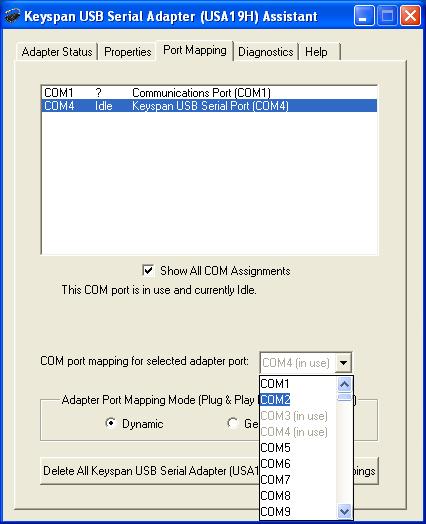
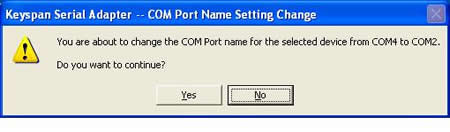
+COM Port Mapping with Keyspan USB Serial AdapterIn the event that a customer has purchased a serial device and is attempting to connect it to a PC that does not have a serial port but does have a USB port, a USB to serial adapter should work. X-Rite recommends the "Keyspan model USA-19HS" USB to serial adapter. It ships with a software installation CD that will install drivers, a users manual, a useful Help file, as well as the "Keyspan USB Serial Adapter Assistant". It is this "Keyspan USB Serial Adapter Assistant" that will allow a user to change port mappings on the PC to select the required "COM1", "COM2", "COM3", or "COM4". Some X-Riteproducts, such as PREVU* and Cholesterol 1,2,3, must be connected to ports mapped to "COM1", "COM2", "COM3", or "COM4" in order to communicate with the spectrophotometer. If the customer has installed a USB to serial adapter, properly connected the spectrophotometer, and still receive a communications error when opening the PREVU* and Cholesterol 1,2,3 software; the adapter could very well be selecting a communications port other than the required "COM1", "COM2", "COM3", or "COM4". If the "Keyspan model USA-19HS" has been installed, follow these directions:
COM Port Settings/Changes -
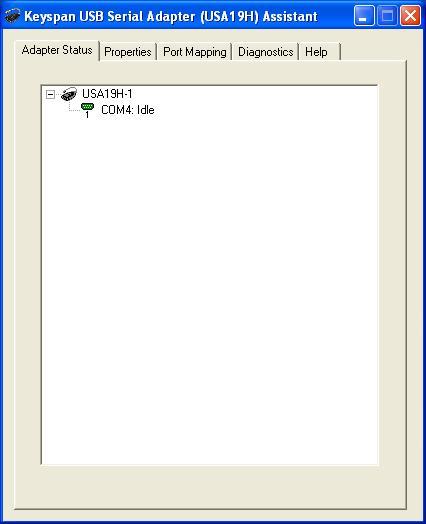
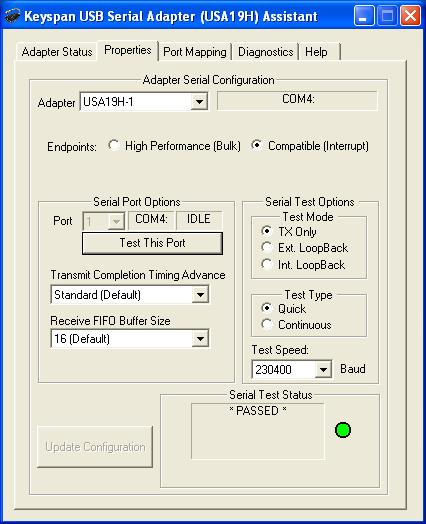
- Go to Windows "Start" > "All Programs" > "Keyspan USB Serial Adapter" > "Keyspan Serial Assistant" to access the following window that will default to the "Adapter Status" tab indicating which communications port the adapter is mapped to. The example below indicates that "COM4" is selected and the MD22 spectrophotometer should have no problem communicating with the PREVU* and Cholesterol 1,2,3 software providing that "COM4" is selected in that software's "Options" window.
-
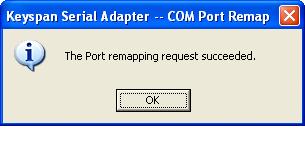
Restart the computer for these settings to take place.
-
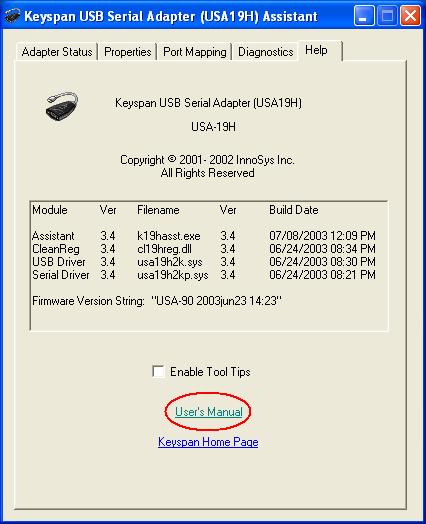
More detailed information on the "Keyspan USB Serial Adapter Assistant" can be accessed by selecting the "Help" tab and then selecting the "User's Manual" as shown below:
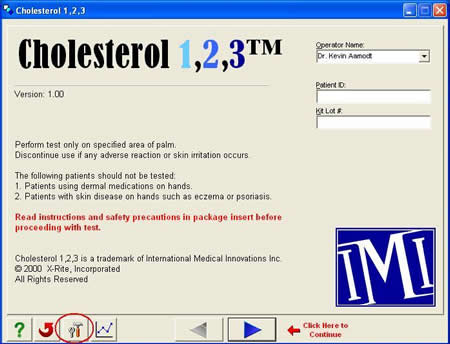
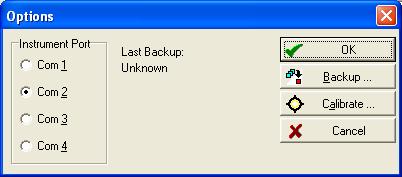
Cholesterol 1,2,3 COM Port Setup -
-
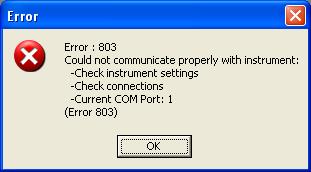
If the customer is using PREVU* software, the spectrophotometer will automatically select the proper COM port as long as it is "COM1", "COM2", "COM3", or "COM4". If the customer is using Cholesterol 1,2,3 software and they still receive the following error while trying to open the software: